Description
Capture Recent Site Visits with Screenshots
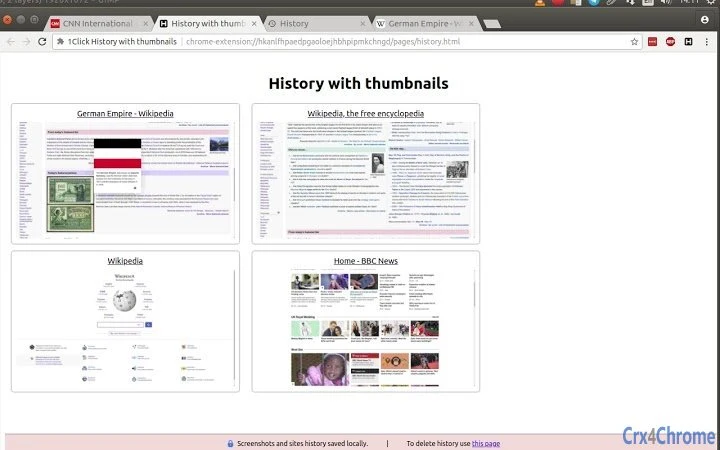
This browser extension helps users quickly review recently visited websites by displaying them as visual thumbnails. Designed for privacy-conscious individuals and developers, it leverages open-source principles to ensure transparency and security. The tool is ideal for professionals who need to revisit content without relying on browser history search or manual note-taking. By capturing screenshots of visited pages, it simplifies content recovery and enhances workflow efficiency. The extension operates entirely within the browser, with no external data storage, making it suitable for users concerned about data privacy. It is part of the 1ce initiative, which promotes open-source development and community-driven innovation. Real-world use cases include research tracking, content reference, and digital memory recovery. The extension is available for Windows, Mac, and Linux users through the Chrome browser.
Key Features & Capabilities
- Visual History View – Displays recently visited websites as thumbnail screenshots, allowing users to identify pages at a glance without relying on text-based history.
- Open-Source Transparency – The source code is publicly available, enabling users and developers to inspect, verify, and contribute to the project, ensuring trust and security.
- Local Data Storage – Screenshots are stored exclusively on the user’s device, with no external transmission or cloud backup, maintaining full privacy control.
- Privacy-First Design – No data is recorded or shared beyond the user’s machine. The extension does not collect browsing habits or metadata.
- Developer-Friendly Contribution – Encourages community involvement through open contribution channels, supporting learning and collaboration for developers and interns.
These features serve practical needs such as retrieving forgotten web content, organizing research materials, and improving digital recall. For example, a researcher can instantly identify a relevant article from a past session by its visual layout, avoiding time-consuming searches. Similarly, a developer can review a code snippet from a previous site visit without needing to retrace steps. The extension’s reliance on local storage ensures that sensitive or private content remains secure.
User Interface, Workflow & Performance
The extension’s interface is minimal and integrated directly into the browser’s toolbar. After installation, clicking the icon opens a new tab displaying a grid of thumbnail images representing visited websites. Navigation is straightforward: users scroll through thumbnails to locate a specific page. The workflow is designed to be intuitive, requiring no complex setup or configuration.
Performance is expected to be efficient given the extension’s lightweight size of 1.2 MB and local storage model. The developer did not specify resource usage details, so actual CPU or RAM behavior remains unverified. However, based on general software behavior patterns, the extension is likely to have low overhead during operation. Stability is supported by the open-source model, which allows for community-driven issue detection and fixes. No reported crashes or bugs were mentioned in the provided information.
Compatibility & System Requirements
The extension is compatible with Windows, Mac, and Linux operating systems, ensuring broad accessibility across desktop environments. It is designed for use with the Chrome browser, as indicated by the installation method and permission structure. The installation size is 1.2 MB, which is small and unlikely to impact system storage significantly.
Exact system requirements were not listed. The developer did not provide additional system requirements. Compatibility with older versions of Chrome or specific hardware configurations is not specified. Users should ensure their browser is up to date to maintain functionality. The extension relies on browser-level permissions and APIs, so performance may vary slightly depending on the system’s browser environment.
Pros and Cons
Pros
- Open-source model ensures transparency and trust
- Privacy-focused with all data stored locally
- Intuitive visual interface for quick content recovery
- Small file size reduces system impact
- Encourages community development and learning
Cons
- No information on performance under heavy browsing loads
- Limited to Chrome browser only
- Does not support cross-device synchronization
- Visual history may grow unmanageable over time
- No built-in search or filtering within the thumbnail view
FAQ Section
Is this extension safe to use?
Yes, the extension is safe. It is open-source, meaning the code is publicly available for review. All data is stored locally on your device and not transmitted to any external server.
Can I contribute to the development?
Yes, the project welcomes contributions from developers and interns. The open-source nature allows anyone to review, test, and submit code improvements via the official website.
Does it work on browsers other than Chrome?
Currently, the extension is designed for Chrome. Compatibility with other browsers was not specified in the provided information.
How is my browsing history protected?
Your browsing history and screenshots are stored only on your local machine. The extension does not record or share any data beyond your device.
Are updates automatic?
Updates are managed through the Chrome Web Store. Users will receive notifications when a new version is available, and installation is handled automatically.
Final Thoughts + CTA
For users seeking a secure, transparent way to revisit recent web content, this extension offers a compelling solution. Its open-source foundation, privacy-first architecture, and visual interface make it a standout tool in the productivity space. While limited to Chrome and lacking advanced filtering, its core functionality is reliable and efficient. The project’s commitment to community involvement adds long-term value, especially for developers and tech-savvy users. Overall, it delivers on its promise of privacy and simplicity.
Download Capture Recent Site Visits with Screenshots now.
Guides & Tutorials for 1Click History with Thumbnails Extension for Chrome
How to install 1Click History with Thumbnails Extension for Chrome
- Click the Preview / Download button above.
- Once redirected, accept the terms and click Install.
- Wait for the 1Click History with Thumbnails Extension for Chrome download to finish on your device.
How to use 1Click History with Thumbnails Extension for Chrome
This software is primarily used for its core features described above. Open the app after installation to explore its capabilities.
User Reviews for 1Click History with Thumbnails Extension for Chrome 0
No reviews found